
Continue Loading
Automatically Add New Items Without Starting Over
The Continue Loading feature allows you to extend an existing load plan without starting over. Instead of recalculating all items from scratch, the algorithm analyzes which items have already been placed and loads only the unplaced or newly added ones into the free space of all unlocked spaces, in their order. Locked spaces are not changed.
This function is especially useful when you update your shipment or modify an existing plan. For example, if you add new products, change quantities, or manually position a few items and want the algorithm to fill the rest automatically,the Continue button does exactly that.
How it works
- Add new items to your item list or adjust quantities.
- Click the Continue button instead of Load.
- The algorithm keeps all currently placed items fixed and optimizes only the new or remaining items.
- The system updates the plan without clearing your existing layout.
Use cases
- Adding a new space and loading the remaining items into it with Continue.
- Completing a partially loaded container.
- Adding last-minute items to an existing shipment.
- Combining manual and automatic placement in the same plan.
- Tip:Use Continue Loading whenever you want to keep your current setup intact and let the system automatically fit in what’s left — a faster and smarter way to finalize your load plan.
Load the Remaining Items
Add another space for the remaining items, then click Continue. The remaining items are loaded into the new space, and the items already placed stay where they are.
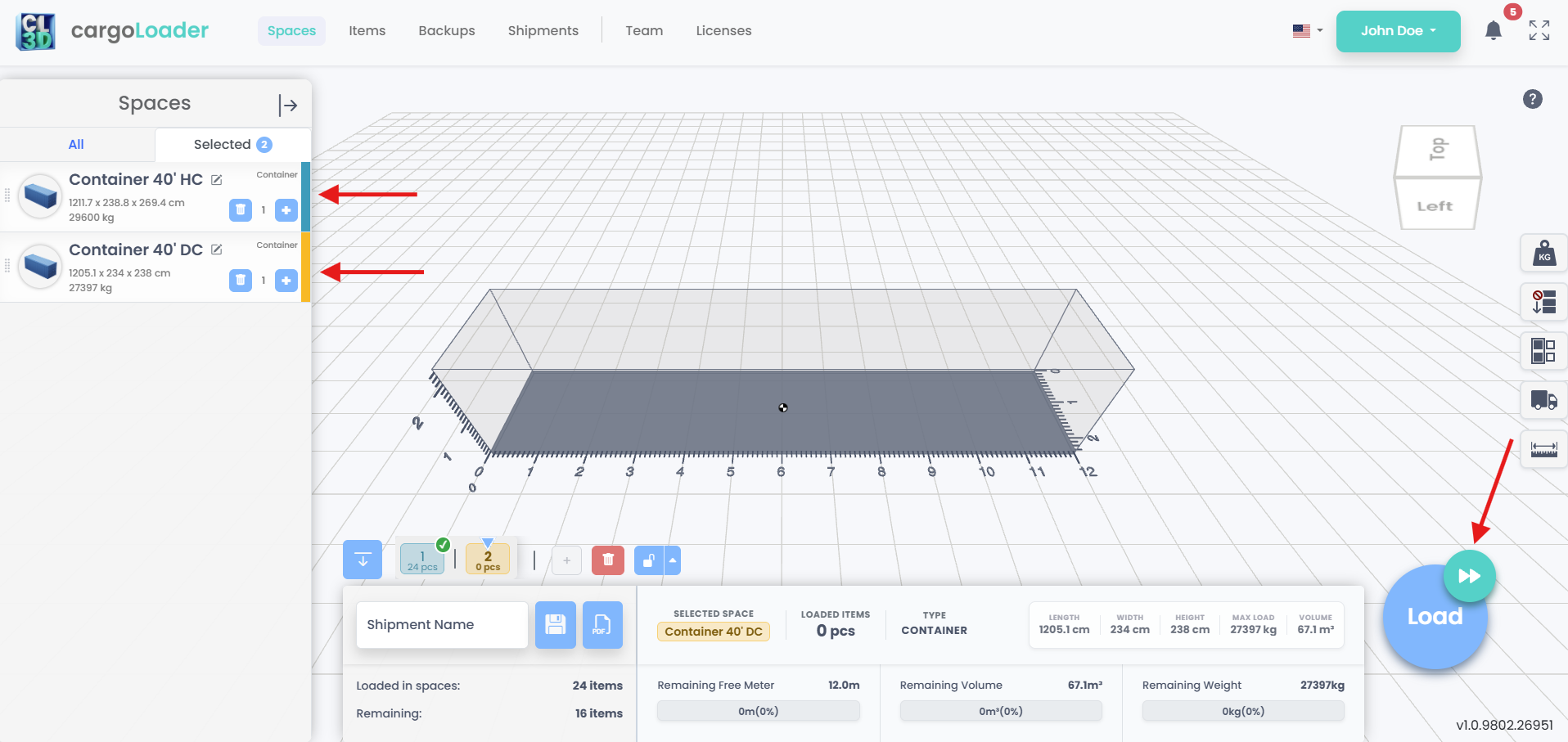
When everything fits, every tab in the space bar shows a green check mark and Remaining Items shows 0 items.
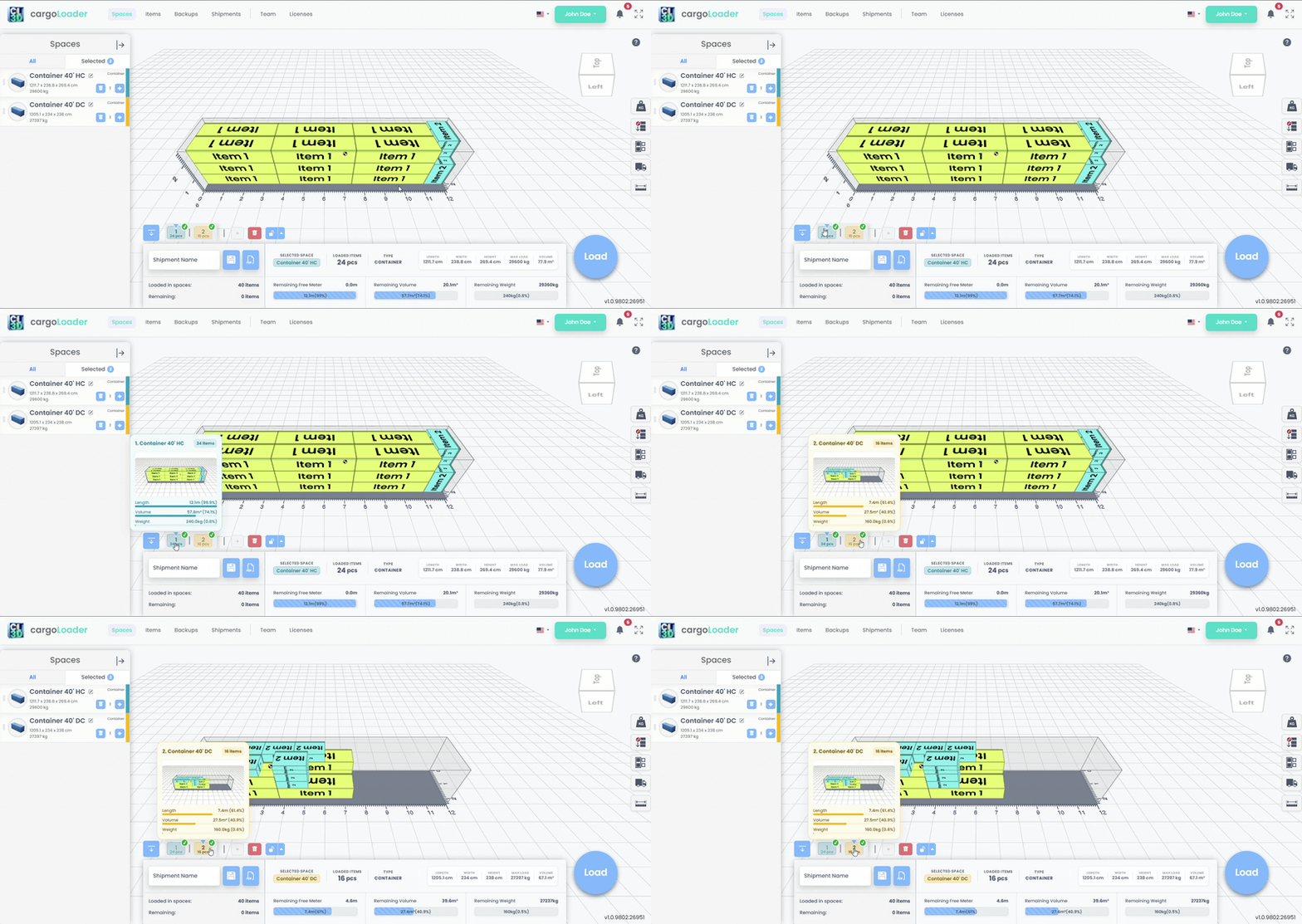
Load or Continue?
Both buttons work on all unlocked spaces, whether you have one space or several.
- Load:Creates a new load plan from scratch.
- Continue:Loads only the items that aren't placed yet, into the free space. Use it after adding a space or new items.
For example, if you add a new item to a finished plan and click Continue, it is placed in the free space without moving the other items.
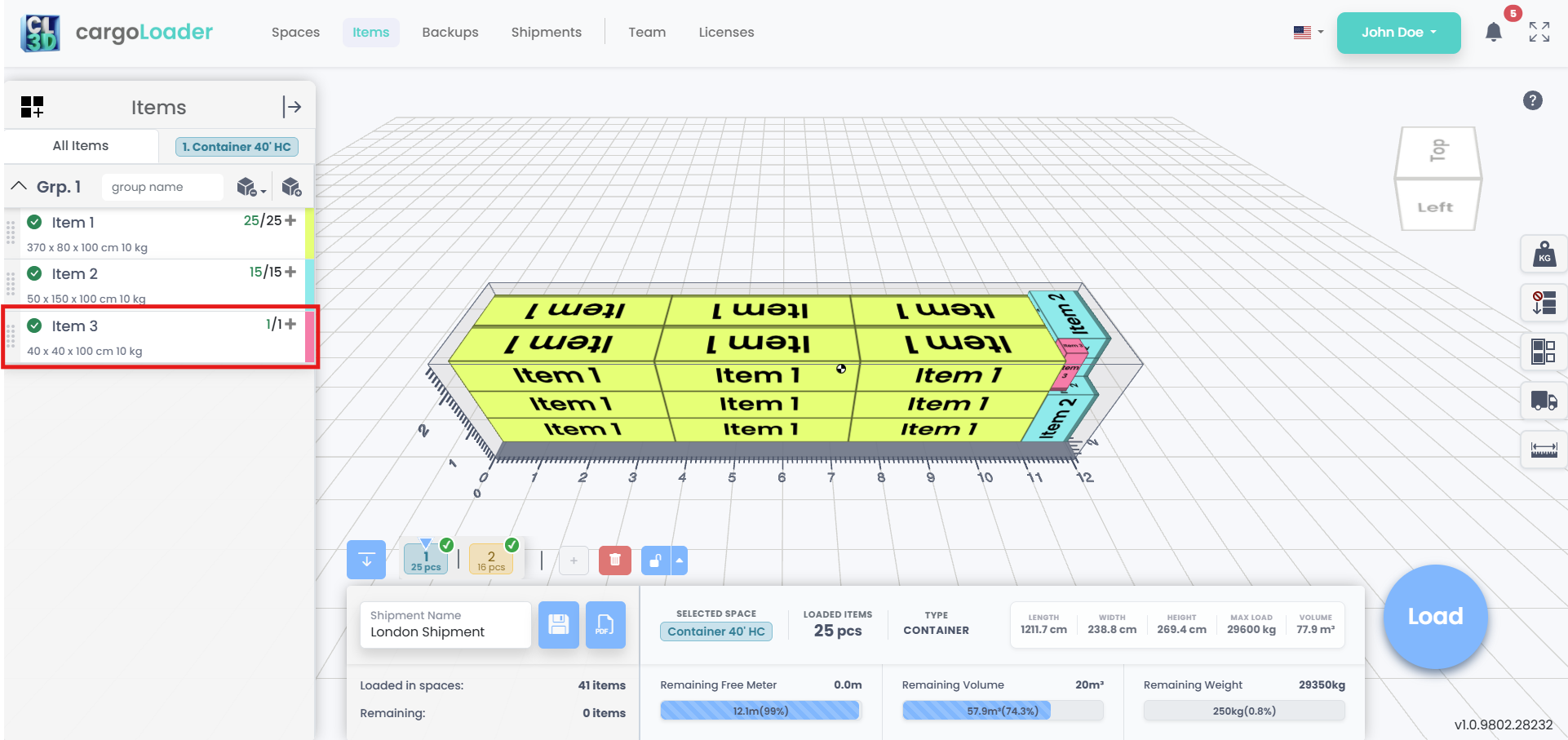
Behavior When Properties Change
When an item’s core properties,such as count, tilt, rotate, bottom only, or stack are changed after being added to the load plan, it is treated as a new variant and can no longer be processed through the Continue feature. To make it usable again, revert the item to its original configuration using the Revert Back function (accessible under Manual Placement).
If an item is loaded in a locked space with different properties, its count can't be increased, and a warning appears.