
Application Interface
Top Navigation Tabs
Spaces
The **Spaces** tab allows users to browse and select the spaces in which cargo items will be arranged, such as containers, trucks, or custom-defined volumes.Available spaces are displayed in a searchable list on the left panel. Users can use the search bar and filter options to find a specific space. Clicking a space displays its dimensions, maximum load capacity, and 3D preview in the main workspace.Users can collapse the Spaces panel to expand the 3D workspace. Once a space is selected, they can proceed to the **Items** tab to begin adding cargo items.

Items
The **Items** tab provides a workspace where users can create, organize, and manage cargo items to be loaded into the selected spaces. Each item can be configured with properties such as dimensions, weight, color, and quantity.The left-hand panel displays cargo items organized into groups. Users can name groups, add new items, and manage existing ones. Each item displays its dimensions, weight, and loaded quantity, along with a status indicator showing whether it has been loaded.Items are visualized within the 3D workspace, where users can review their placement and adjust the loading arrangement. The Items panel can also be collapsed to provide a larger 3D viewing area.

Backups
The Backups tab displays previously saved shipment backups, allowing users to revisit and restore past load plans when needed. Each backup represents a snapshot of a shipment, including item arrangements, space configurations, and all associated metadata. This feature ensures data integrity and provides flexibility for version control, enabling users to revert to earlier stages of their planning process with ease.

Shipments
The Shipments tab allows users to view and manage saved shipments within the application. Each shipment contains a load plan, including the selected spaces, loaded items, and their arrangements.Saved shipments are displayed in a table with information such as shipment name, space name, space type, creation date, and user. Users can search and filter shipments using the fields provided in the table.Shipments containing multiple spaces can be expanded to display each space individually, along with its preview, name, and type. Users can open a saved shipment or access a specific space within it to review the loading arrangement. Shipments can also be deleted when no longer needed.

Team
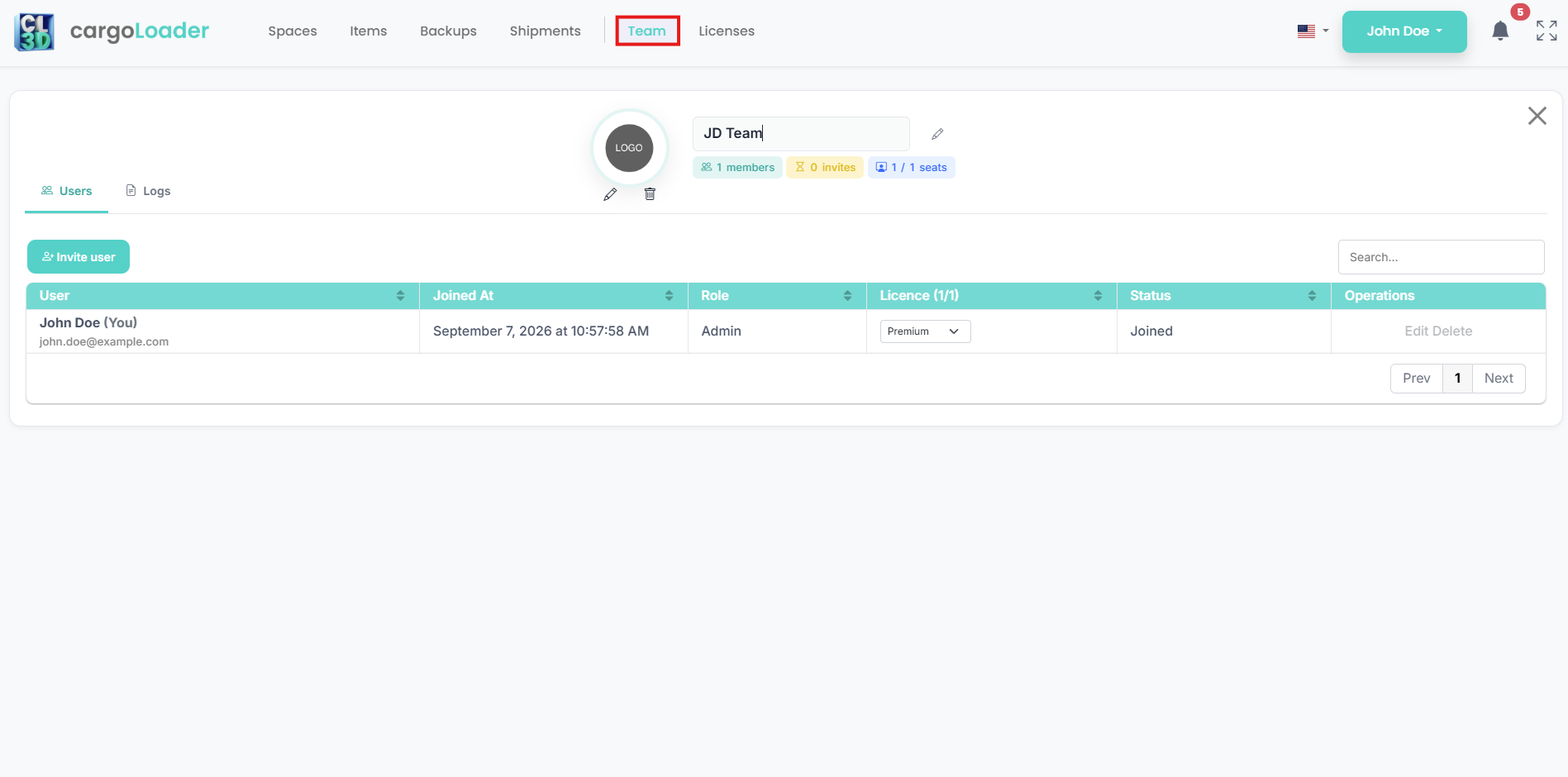
The Team tab allows users to manage their team and its members within CargoLoader 3D. Users can customize the team name and logo, invite new members, and monitor the number of active members, pending invitations, and available license seats. The Users section displays each member's name, email address, joining date, role, assigned license, and membership status. Authorized users can manage team members and license assignments, while the Logs section provides access to team activity records.
Licenses
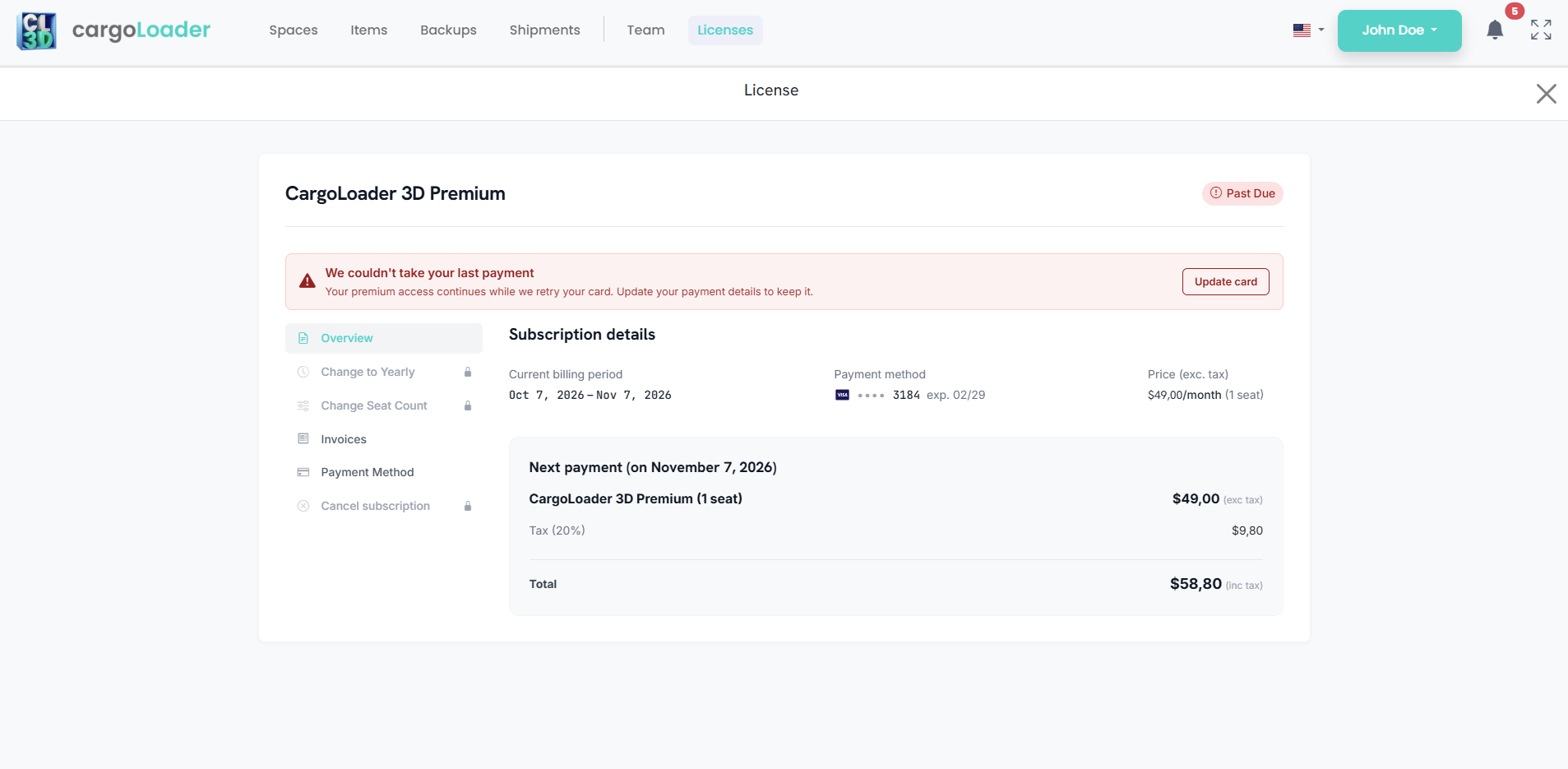
The Licenses tab provides an overview of the current CargoLoader 3D subscription and its billing information. Users can view their subscription plan, payment status, current billing period, payment method, pricing, and number of licensed seats. The Overview section displays upcoming payment details, including applicable taxes and the total amount due. Users can also access invoices and manage their payment method. Depending on subscription permissions and availability, additional options may include changing the billing cycle, adjusting the number of seats, or canceling the subscription. Payment notifications alert users to billing issues and provide an option to update their payment details.
3D Load Plan Area
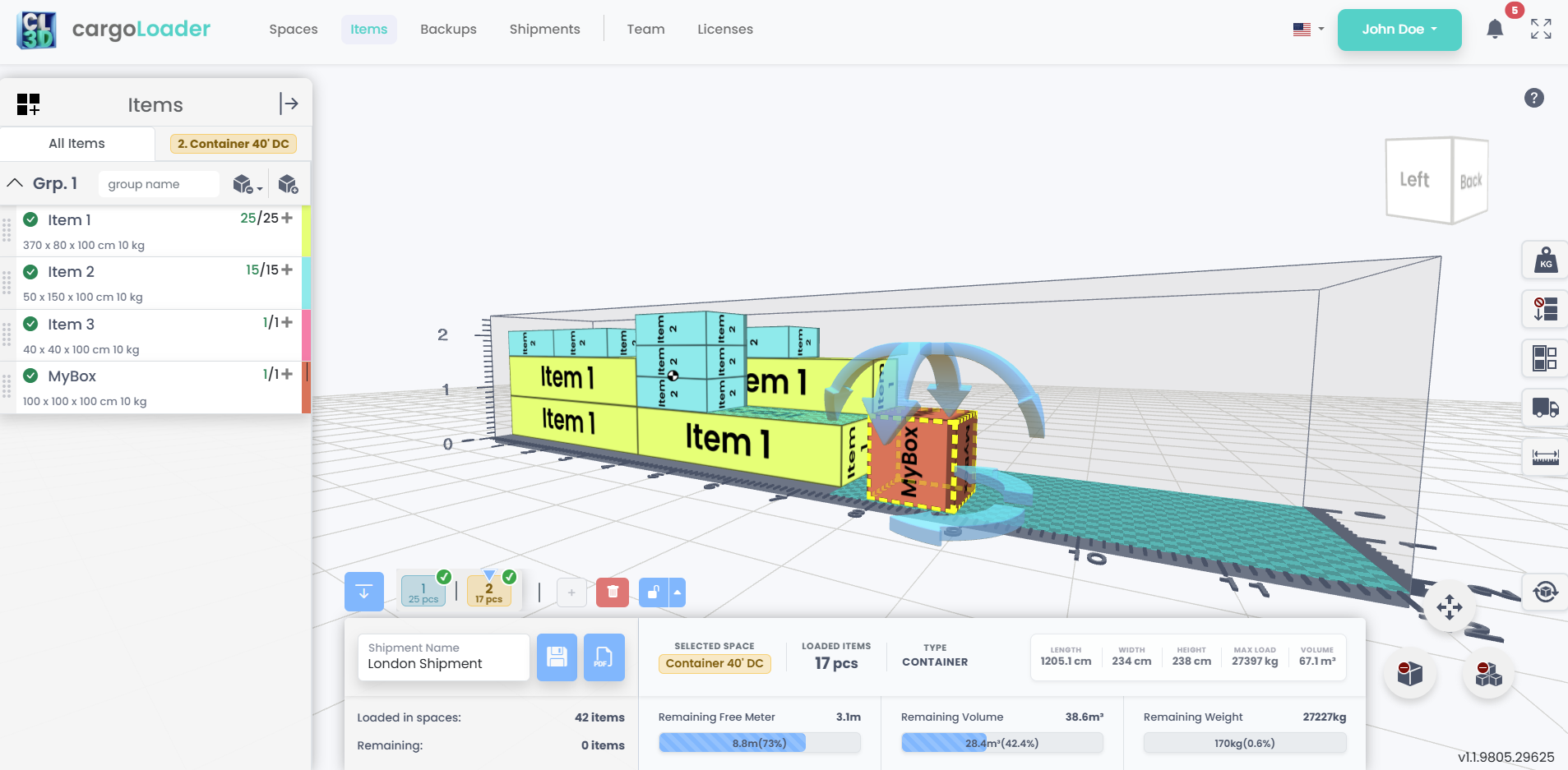
The 3D Load Plan Area is the central workspace where users can visually arrange items within the selected container or space. This interactive 3D environment allows for both automatic and manual item placement, giving users full control over positioning, rotation, and alignment. Real-time visual feedback helps ensure optimal space utilization and load stability. Users can also zoom, rotate, and pan the view to inspect item arrangements from multiple angles, making the planning process both intuitive and precise.
Right-Side Load Settings Panel
Manage key parameters that affect load planning: weight limits, item order, grouping, axle load view, and ruler rules. For detailed explanations and guidance.

The Space Bar
The space bar sits above the loading information panel. Each selected space has a numbered tab; click a tab to open that space in the 3D view. The bar also has a lock button, which keeps a space's load as it is, and Delete Selected Space, which removes the open space.
The Bottom Panel (Loading Information)
The Bottom Panel (Loading Information) provides an overview of the loading plan and the currently selected space. Users can enter a shipment name, save the plan, or generate a PDF report using the corresponding buttons.The panel displays the selected space's name, type, dimensions (length, width, and height), maximum load capacity, and volume. When multiple spaces are added, users can switch between them using the numbered space indicators above the panel. Each indicator shows the number of loaded items and the loading status of its space.The lower section displays the total number of items loaded across all spaces and the number of remaining items. Real-time indicators show the remaining free length, volume, and weight capacity of the currently selected space, helping users monitor space utilization throughout the loading process.

The Viewport Controls
The Viewport Controls or 3D Navigation Tools are located at the top-right corner of the 3D workspace. The navigation cube allows users to quickly adjust the camera angle by clicking on labeled faces such as "Top", "Left", or "Back", enabling intuitive orientation control when viewing and interacting with the 3D load plan.
